How to Install IPTV Smarters Pro on Firestick — Complete Guide Canada & USA 2026
If you’ve been searching for how to install IPTV Smarters Pro on Firestick, you’ve landed in the right place. This step-by-step guide walks you through the entire setup process — from enabling developer options on your Amazon Firestick to streaming thousands of live channels, sports, and on-demand content in minutes. Whether you’re in Canada or the United States, iptvproviders.pro makes it easy to get a reliable IPTV subscription up and running on any Firestick device. Let’s get started.
What is IPTV Smarters Pro?
IPTV Smarters Pro is a powerful, free media player application that allows you to stream IPTV content directly on your device using an M3U playlist or Xtream Codes API from your chosen IPTV provider. Unlike traditional cable or satellite TV, IPTV (Internet Protocol Television) delivers live TV channels, movies, and series over your internet connection — giving you thousands of channels at a fraction of the price.
IPTV Smarters Pro is one of the most popular IPTV players available for Android-based devices, and the Amazon Firestick — running a custom version of Android — is one of its most popular platforms. The app supports multiple playlists, Electronic Program Guide (EPG), catch-up TV, and a polished dark UI that looks great on any TV screen.
Why IPTV Smarters Pro is the Best IPTV Player for Firestick
When it comes to the best IPTV player for Firestick, IPTV Smarters Pro consistently comes out on top for several reasons:
It is completely free to download and use — you only pay for your IPTV subscription.
The interface is clean, fast, and easy to navigate with a Firestick remote.
It supports both M3U URL and Xtream Codes API login methods, making it compatible with virtually every IPTV provider.
Multi-screen support allows you to manage multiple IPTV provider accounts in one app.
It offers built-in EPG (Electronic Program Guide) so you always know what’s playing.
Regular updates keep it stable and secure on the latest Firestick firmware.
For viewers in Canada and the USA, IPTV Smarters Pro delivers a seamless cord-cutting experience when paired with a quality IPTV subscription from iptvproviders.pro.
IPTV Smarters Pro vs TiviMate — Which is Better for IPTV Providers?
Both IPTV Smarters Pro and TiviMate are excellent IPTV players, but they serve slightly different audiences.
TiviMate has a sleek interface and is particularly popular among users who want a premium TV-like EPG experience. However, TiviMate’s best features are locked behind a paid companion app subscription. IPTV Smarters Pro, on the other hand, is completely free and still offers robust EPG support, multiple playlist management, and Xtream Codes compatibility.
For most IPTV providers in Canada and the USA, IPTV Smarters Pro is the recommended starting point — especially for new users — because of its zero cost, wide compatibility, and ease of setup. If you’re looking for the best IPTV providers to use with either app, iptvproviders.pro is the go-to resource.
What You Need Before Installing IPTV Smarters Pro on Firestick
Before you install IPTV Smarters on Firestick, make sure you have everything in place. Rushing into the install without preparation is the most common cause of errors.
Compatible Firestick Devices for IPTV Smarters Pro
IPTV Smarters Pro works on virtually every current Amazon Firestick model, including:
Fire TV Stick Lite
Fire TV Stick (3rd Gen and later)
Fire TV Stick 4K
Fire TV Stick 4K Max
Fire TV Cube (all generations)
For the best IPTV streaming experience in Canada and the USA, the Fire TV Stick 4K Max is highly recommended. Its faster processor and Wi-Fi 6 support significantly reduce buffering when streaming HD and 4K IPTV content.
Internet Speed Requirements for IPTV Providers
Your internet connection is the single biggest factor in your streaming quality. Here are the minimum recommended speeds for each resolution:
Standard Definition (SD): 5 Mbps
High Definition (HD/1080p): 10–15 Mbps
4K Ultra HD: 25–50 Mbps
8K (where available from your IPTV provider): 50 Mbps+
A wired Ethernet connection (via a Firestick Ethernet adapter) is always preferred over Wi-Fi for IPTV. If you must use Wi-Fi, position your router as close to the Firestick as possible and use a 5GHz band.
Get Your IPTV Subscription First
Before you open IPTV Smarters Pro, you need an active IPTV subscription. This is where iptvproviders.pro comes in. Your IPTV subscription will provide you with either an M3U URL or Xtream Codes API credentials (server URL, username, and password) that you’ll enter into the app.
If you’re not sure which plan to choose, visit the IPTV subscription page at iptvproviders.pro to compare packages for Canada and the USA. You can also start with a free trial to test the service before committing.
How to Install IPTV Smarters Pro on Firestick — Step by Step
Now let’s walk through the complete IPTV Smarters Pro Firestick installation process. Follow each step carefully and you’ll be streaming in under 10 minutes.
Step 1 — Enable Apps from Unknown Sources on Firestick
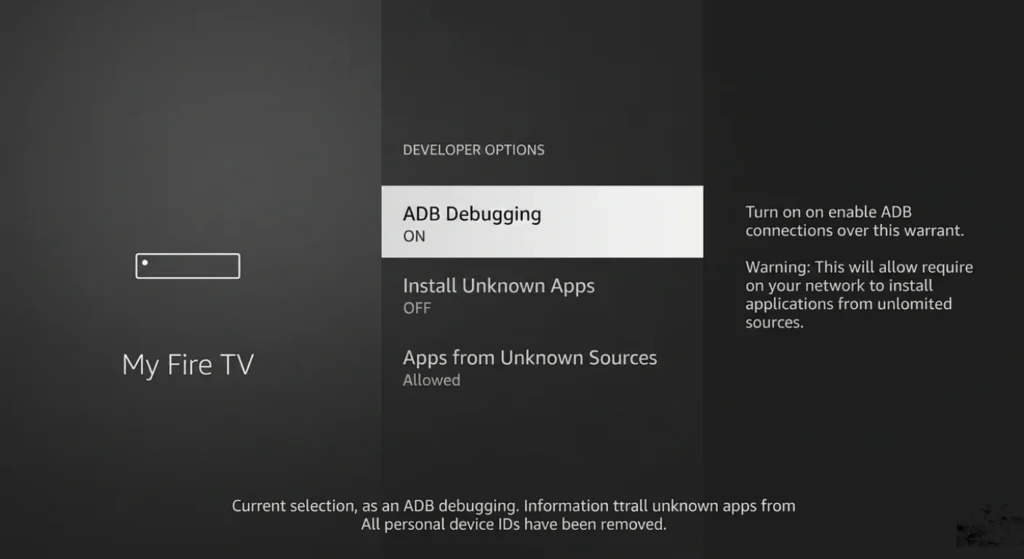
Since IPTV Smarters Pro is not available directly on the Amazon App Store, you need to allow your Firestick to install apps from outside Amazon’s ecosystem. Here’s how:
From the Firestick home screen, go to Settings (gear icon in the top menu).
Select My Fire TV (or Device on older models).
Choose Developer Options.
Toggle on Apps from Unknown Sources.
Confirm by selecting Turn On when prompted.
This setting is safe and simply allows you to sideload third-party apps. You can turn it off again after the installation if you prefer.
Step 2 — Download the Downloader App
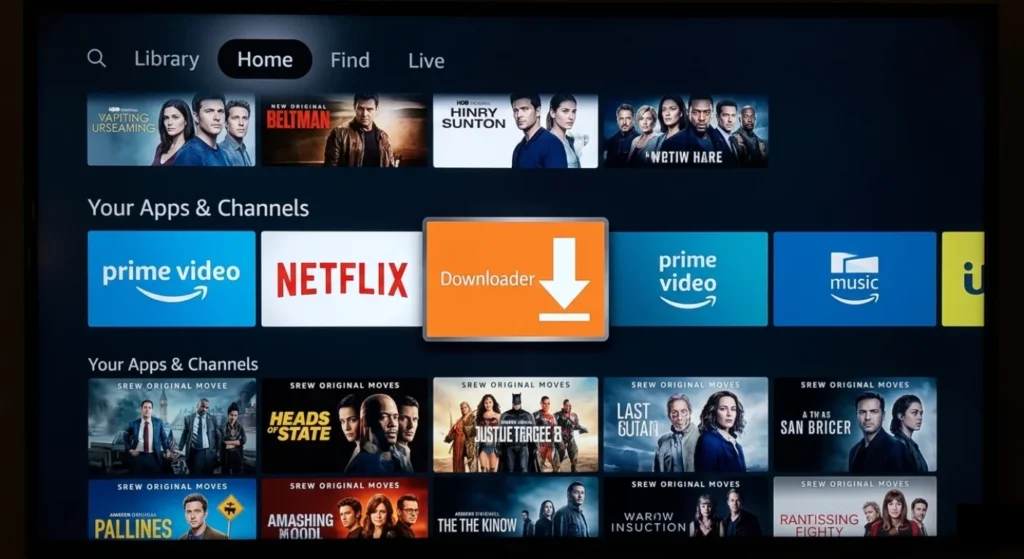
The Downloader app is a free tool available on the Amazon App Store that lets you download APK files onto your Firestick using a direct URL. It’s the easiest and most reliable method for sideloading apps.
Press the Home button on your Firestick remote.
Go to the Search icon and type “Downloader.”
Select the Downloader app from the results (it has an orange icon).
Click Download or Get and wait for the installation to complete.
Open Downloader and allow it access to files when prompted.
Step 3 — Download IPTV Smarters Pro APK
With the Downloader app open, you’ll now download the IPTV Smarters Pro APK directly from the official source:
In the Downloader URL bar, type the following address exactly: https://www.iptvsmarters.com/smarters.apk
Press Go or the Enter key on your remote.
The APK file will begin downloading. Wait for it to complete (the file is approximately 25–30 MB).
Always download IPTV Smarters Pro from the official website (iptvsmarters.com) to ensure you get the latest, malware-free version.
Step 4 — Install IPTV Smarters Pro
Once the APK download is complete, Downloader will automatically prompt you to install it:
On the Install screen, click Install and wait a few seconds.
Once the installation is complete, you’ll see an “App installed” confirmation.
Click Done (you can open it later through your apps) or Open to launch it immediately.
You can also find IPTV Smarters Pro in your Apps & Channels section on the Firestick home screen.
Tip: After installing, go back to Downloader and delete the APK file to free up storage space on your Firestick.
Step 5 — Configure Your IPTV Subscription from iptvproviders.pro
Now it’s time to connect your IPTV subscription to the app. When you first open IPTV Smarters Pro, it will ask you to add a new user/playlist.
Select Add New User.
Choose your preferred login method: either “Load Your Playlist or File / URL” (for M3U) or “Login with Xtream Codes API” (recommended if your provider supports it).
Enter a name for your profile (e.g., “IPTV Providers Pro”).
Enter the credentials provided in your iptvproviders.pro account dashboard: For M3U: paste your M3U URL. For Xtream Codes: enter the Server URL, Username, and Password.
Tap Add User. The app will load your channel list, which may take 30–60 seconds depending on the size of your playlist.
For the best IPTV experience in Canada and the USA, visit best IPTV USA (iptvproviders.pro/best-iptv-usa-2026/) or best IPTV Canada (iptvproviders.pro/best-iptv-service-canada-2026/) for subscription recommendations optimized for your region.
Step 6 — Start Streaming in 8K
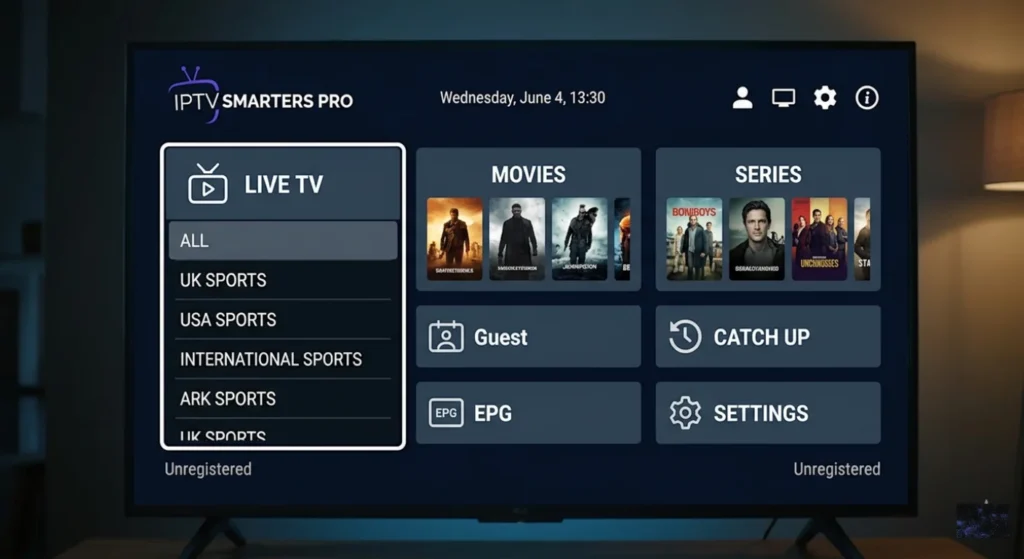
With your IPTV subscription loaded, you’re ready to stream. Navigate through the categories on the IPTV Smarters Pro home screen:
Live TV: Browse thousands of live channels by country, genre, or sports category.
Movies: Access a massive on-demand VOD library.
Series: Watch your favorite TV series on demand.
Catch-Up: Re-watch content you may have missed (if supported by your IPTV provider).
Select any channel or title and hit play. If your Firestick is a 4K Max model and your IPTV subscription from iptvproviders.pro includes 4K or 8K streams, you’ll enjoy stunning picture quality right out of the box.
How to Add Your IPTV Providers Pro Playlist to IPTV Smarters
If you need to add additional playlists or switch between accounts in IPTV Smarters Pro, the process is simple.
Add via M3U URL
An M3U URL is a direct link to your channel playlist. Your IPTV provider will supply this link when you sign up.
Open IPTV Smarters Pro and tap the user/profile icon.
Select Add New User and choose “Load Your Playlist or File / URL.”
Paste your M3U URL in the URL field.
Tap Add User. Your channels will load automatically.
M3U is the most universal format and is supported by every major IPTV provider, including all services listed on iptvproviders.pro.
Add via Xtream Codes API
Xtream Codes API is a more advanced login method that offers better performance, faster channel loading, and catch-up TV support.
Open IPTV Smarters Pro and select Add New User.
“Login with Xtream Codes API.”
Enter your Server URL (e.g., http://yourserver.com:8080), Username, and Password — all provided by your IPTV subscription service.
Tap Add User.
Xtream Codes API is the recommended method for iptvproviders.pro subscribers in Canada and the USA, as it delivers faster EPG loading and higher stability.
IPTV Smarters Pro Settings — Best Configuration for Canada & USA
Out of the box, IPTV Smarters Pro works well, but a few tweaks will dramatically improve your experience.
Best Video Player Settings for IPTV Smarters Pro Firestick
Inside the app settings, navigate to the Video Player section and apply these settings:
Player Engine: Set to ExoPlayer for the best compatibility with most IPTV streams.
Hardware Acceleration: Enable this for smoother 4K and HD playback.
Aspect Ratio: Set to Auto or Full Screen depending on your TV.
Buffer Size: Increase the buffer to 30–60 seconds to reduce interruptions on slower connections.
If ExoPlayer causes issues with a particular channel, switch to the built-in player (Player 2) as a fallback.
Enable EPG Guide for Your IPTV Providers
The Electronic Program Guide (EPG) shows you what’s currently airing and what’s coming up next — just like a traditional TV guide.
In Settings, go to EPG Settings.
Toggle Enable EPG to On.
Your IPTV provider’s EPG URL should be filled in automatically if you used Xtream Codes API. If not, contact your provider for the EPG URL and paste it manually.
Tap Refresh EPG to load the guide data.
Once enabled, press the Info button on your remote while watching live TV to see the full program schedule for any channel.
Set Up Multiple IPTV Provider Connections
IPTV Smarters Pro allows you to add multiple user profiles, making it easy to manage multiple IPTV subscriptions in a single app.
Tap the user icon in the top corner of the home screen.
Select Add New User and repeat the login process for each additional IPTV provider account.
You can switch between accounts at any time without logging out.
This is particularly useful for households in Canada and the USA that subscribe to both a local IPTV provider and an international service.
Troubleshooting — IPTV Smarters Pro Not Working on Firestick
Even with the best IPTV provider, occasional issues can arise. Here are the most common problems and how to fix them.
Buffering Issues — Fix with VPN for IPTV Smarters Pro
Buffering is the most common complaint among IPTV users in both Canada and the USA. The most frequent cause is ISP throttling — when your internet service provider detects streaming traffic and intentionally slows it down.
The fix is straightforward: use a VPN. A VPN encrypts your traffic and hides it from your ISP, eliminating throttling instantly. Look for a VPN with dedicated streaming servers in Canada and the USA.
Other causes of buffering include:
A slow or congested Wi-Fi connection — switch to Ethernet or move closer to your router.
An overloaded IPTV server — try switching to a different server or stream quality in the app.
Insufficient Firestick storage — clear the IPTV Smarters Pro cache in Firestick Settings > Applications > Manage Installed Applications.
Channels Not Loading in IPTV Smarters Pro
If channels appear in your list but won’t play, try these steps:
Check your internet connection — run a speed test on your Firestick.
Verify your M3U URL or Xtream Codes credentials haven’t changed — log into your iptvproviders.pro dashboard to confirm.
Switch your video player engine in Settings (e.g., from ExoPlayer to Player 2).
Try clearing the app cache: Settings > Applications > Manage Installed Applications > IPTV Smarters Pro > Clear Cache.
If the issue persists, contact your IPTV provider’s support team. The problem may be server-side.
IPTV Smarters Pro App Crashing on Firestick
App crashes are usually caused by one of two issues: low Firestick memory or an outdated app version.
Force-close the app and relaunch it.
Restart your Firestick by unplugging it for 30 seconds.
Check for IPTV Smarters Pro updates — download the latest APK from iptvsmarters.com using the same Downloader method described above.
If crashes persist, uninstall and reinstall the app completely.
Older Firestick models (1st and 2nd generation) may struggle to run IPTV Smarters Pro smoothly due to limited RAM. Upgrading to a Fire TV Stick 4K Max is the long-term solution.
FAQ — IPTV Smarters Pro Firestick Canada & USA
Q1: Is IPTV Smarters Pro free on Firestick?
Yes, IPTV Smarters Pro is completely free to download and install on Firestick. There are no in-app purchases or subscription fees for the app itself. The only cost is your IPTV subscription from an IPTV provider like iptvproviders.pro, which gives you access to the actual live channels and content.
Q2: What is the best IPTV provider for IPTV Smarters Pro?
The best IPTV provider for IPTV Smarters Pro depends on your location and preferences. For users in Canada and the USA, iptvproviders.pro is consistently rated among the top choices for reliability, channel selection, and customer support. They offer full Xtream Codes API compatibility, which works perfectly with IPTV Smarters Pro. You can compare the best IPTV USA options and best IPTV Canada options on their dedicated pages.
Q3: Why is IPTV Smarters Pro buffering on my Firestick?
IPTV Smarters Pro buffering on Firestick is most commonly caused by ISP throttling, a slow Wi-Fi connection, or an overloaded IPTV server. The fastest fix is to use a VPN to bypass ISP throttling. You should also try switching to a wired Ethernet connection and reducing the stream quality from 4K to 1080p if your internet speed is borderline.
Q4: Can I use IPTV Smarters Pro in Canada and USA?
Absolutely. IPTV Smarters Pro works in both Canada and the USA with any compatible IPTV subscription. There are no geo-restrictions on the app itself. The channels you can access depend entirely on your IPTV provider’s lineup. iptvproviders.pro offers IPTV subscriptions specifically optimized for Canadian and American viewers, including local channels, sports networks, and premium cable alternatives.
Q5: How do I get an IPTV subscription for Smarters Pro?
Getting an IPTV subscription for Smarters Pro is easy. Visit the IPTV subscription page at iptvproviders.pro, choose a plan that suits your needs, and complete checkout. You’ll receive your M3U URL or Xtream Codes API credentials by email, which you then enter directly into IPTV Smarters Pro. The whole process takes under five minutes.
Ready to Stream? Get Your Free Trial from iptvproviders.pro
You now have everything you need to install IPTV Smarters Pro on Firestick and start enjoying thousands of live channels, sports, movies, and series in Canada and the USA.
The only thing left is a quality IPTV subscription to power it all. Head over to iptvproviders.pro/free-trial/ and claim your free trial today. With a 30-Day Money-Back Guarantee — 100% Refund, No Questions Asked, there’s absolutely no risk. If you’re not satisfied for any reason within 30 days, you get every penny back.
Don’t pay for cable. Cut the cord, install IPTV Smarters Pro on Firestick, and start streaming the smart way with the best IPTV providers in Canada and the USA.
30-Day Money-Back Guarantee — 100% Refund, No Questions Asked.
👉 Start Your Free Trial Now — iptvproviders.pro/free-trial/
Disclaimer: iptvproviders.pro provides information about IPTV services for educational purposes. Users are responsible for ensuring they access only legally licensed content in their region.