TiviMate Installation Guide — Easy Complete IPTV Setup 2026

This complete TiviMate installation guide covers everything you need to get TiviMate up and running on your Firestick, Android TV, Samsung TV, LG TV, or Windows PC in 2026. TiviMate is widely regarded as the most powerful and feature-rich IPTV player available today — and for good reason. Its cable TV-style interface, multi-playlist support, DVR recording, and EPG customization put it in a class of its own.
Whether you are installing TiviMate for the first time or upgrading to TiviMate Premium, this guide walks you through every step. Once your player is set up, pair it with one of the best IPTV providers for instant access to 35,000+ live channels, 130,000+ on-demand titles, true 8K streaming, and a built-in VPN included at no extra cost.
What Is TiviMate?
TiviMate is an Android-based IPTV player application that transforms any IPTV subscription into a full, professional TV experience. Designed for power users, TiviMate delivers an interface that closely mimics traditional cable and satellite TV services — complete with channel lists, a real-time electronic program guide, and advanced playback controls.
Unlike simpler players, TiviMate stands out for its depth of customization. Users can sort channels, create custom groups, apply parental controls, set up DVR recordings, and even sync settings across multiple devices. The free version is functional, but TiviMate Premium unlocks the app’s full potential.
Key features of TiviMate include:
● Multi-playlist support (Premium) — run multiple IPTV providers simultaneously
● DVR recording — record live TV to a USB drive or network storage
● Catch-up — watch previously aired programs on demand
● Advanced EPG — sort, filter, and color-code your TV guide
● External player support — use MX Player, VLC, or any preferred player
● Timeshift — pause and rewind live TV
● Cloud backup and multi-device sync (Premium)
● Available on Firestick, Android TV, Nvidia Shield, Google TV, and via emulator on PC
Important: TiviMate is a media player only and does not include any channels. You need a valid IPTV subscription with an M3U URL or Xtream Codes credentials to use it.
TiviMate Free vs TiviMate Premium — Which Do You Need?
TiviMate offers a free version that supports a single playlist and provides basic playback. TiviMate Premium, available as an annual subscription (~$5.99/year) or lifetime purchase, unlocks the full feature set. Here is what changes with Premium:
● Unlimited playlists — connect multiple IPTV providers at once
● DVR recording and scheduled recordings
● Catch-up and timeshift support
● Advanced EPG customization — colors, sorting, and filtering
● External player support for MX Player, VLC, and others
● Cloud backup and sync across all your devices
● Custom channel groups and manual sorting
For most users pairing TiviMate with a full-featured subscription from iptvproviders.pro, TiviMate Premium is absolutely worth the small annual cost. The combination of Premium and a high-quality IPTV subscription delivers the best possible streaming experience.
TiviMate Installation Guide — Step by Step per Device
Amazon Firestick / Fire TV
TiviMate is not available in the Amazon App Store and must be sideloaded. This process takes approximately 3 minutes.
1. Go to Settings > My Fire TV > Developer Options and enable “Apps from Unknown Sources.”
2. Open the Amazon App Store, search for “Downloader by AFTVnews,” and install it.
3. Open Downloader, select the URL field, and type: tivimate.com — then press Go to reach the official TiviMate website.
4. Alternatively, enter Downloader code 272483 to download the latest TiviMate APK directly.
5. When the APK download completes, click Install.
6. Once installed, click Done and then Delete to remove the APK file and free up storage space.
7. Open TiviMate from your app list and proceed to add your IPTV playlist.
Android TV / Google TV / Nvidia Shield
1. Open the Google Play Store on your Android TV or Google TV device.
2. Search for “TiviMate IPTV Player” and select the official app.
3. Click Install and wait for the download to complete.
4. Once installed, open TiviMate and follow the playlist setup steps below.
Pro tip: Nvidia Shield and Chromecast with Google TV deliver the smoothest TiviMate experience due to their processing power. A wired Ethernet connection is strongly recommended for 4K and 8K streams.
Samsung Smart TV / LG Smart TV
TiviMate does not have a native app in the Samsung App Store or LG Content Store. The most reliable solution is to connect an external Android device to your Smart TV via HDMI.
1. Connect an Amazon Firestick, Android TV box, or Chromecast with Google TV to your TV’s HDMI port.
2. Install TiviMate on that external device using the Firestick or Android TV steps above.
3. Switch your TV input to the HDMI port connected to the external device.
4. Use TiviMate normally via the external device’s remote control.
Windows PC / Mac
TiviMate does not have a native Windows or macOS application. You can run it through an Android emulator such as BlueStacks or LDPlayer.
1. Download and install BlueStacks from bluestacks.com on your PC or Mac.
2. Sign into the Google Play Store inside BlueStacks using a Google account.
3. Search for “TiviMate IPTV Player” and install it within BlueStacks.
4. Open TiviMate inside BlueStacks and follow the playlist setup steps below.
iOS / iPhone / iPad
TiviMate is not available on the Apple App Store as it is an Android-only application. For iPhone and iPad users, the best alternatives are IPTV Smarters Pro or GSE Smart IPTV, both available on the App Store and fully compatible with iptvproviders.pro subscriptions.
Roku
TiviMate does not support Roku natively. Roku users should connect an external device such as an Amazon Firestick or Android TV box to their TV via HDMI and install TiviMate on that device instead.
How to Activate TiviMate and Connect Your IPTV Playlist
Once TiviMate is installed, connecting your IPTV subscription takes less than two minutes. TiviMate supports both M3U playlist URLs and Xtream Codes API login — Xtream Codes is generally faster for EPG and category loading.
Add Playlist via M3U URL
1. Open TiviMate and select “Add Playlist” from the welcome screen.
2. Choose “M3U Playlist” from the available options.
3. Enter a name for your playlist (e.g., “IPTV Providers Pro”).
4. Paste your M3U URL provided by your IPTV subscription into the URL field.
5. Click Next, then set your EPG URL if provided by your IPTV service.
6. Click Finish — TiviMate will load your channels automatically.
Don’t have a subscription yet? Visit iptvproviders.pro/pricing/ to get your IPTV subscription. Plans start at $12.99/month with a free 24-hour trial and no credit card required. Your M3U URL and Xtream Codes credentials are delivered instantly after activation.
How to Unlock TiviMate Premium
TiviMate Premium is purchased through the TiviMate Companion app — a separate app available on the Google Play Store. The Companion app is required even if you are purchasing Premium for a Firestick or Android TV.
● Install TiviMate Companion from the Google Play Store on an Android phone, tablet, or emulator.
● Open TiviMate Companion and sign in with a Google account.
● Select your preferred plan — annual (~$5.99/year) or lifetime — and complete the purchase.
● In TiviMate on your TV or device, go to Settings > Unlock Premium.
● Sign in with the same Google account you used in the Companion app.
● TiviMate Premium features will activate immediately.
How to Set Up TiviMate IPTV in 3 Simple Steps
Already have TiviMate installed on your device? Here is the fastest way to get your IPTV subscription connected and streaming. This tivimate installation guide summary covers the three core steps every user needs — from first launch to live TV.
Step 1 — Install TiviMate on Your Device
TiviMate is available on both Google Play Store (Android TV, Nvidia Shield, Google TV) and via sideload on Amazon Firestick. Choose the method that matches your device:
1. Android TV / Google TV: Open the Google Play Store, search for “TiviMate IPTV Player,” and tap Install.
2. Amazon Firestick: Open the Amazon Appstore and search for “TiviMate.” If not found directly, use the Downloader app — enter code 272483 to download the TiviMate APK and install it in under 3 minutes.
3. Once installed, open TiviMate. You will land on the welcome screen ready to add your IPTV playlist.
Pro tip: On Firestick, always enable “Apps from Unknown Sources” under Settings > My Fire TV > Developer Options before using the Downloader app.
Step 2 — Add Your IPTV Playlist
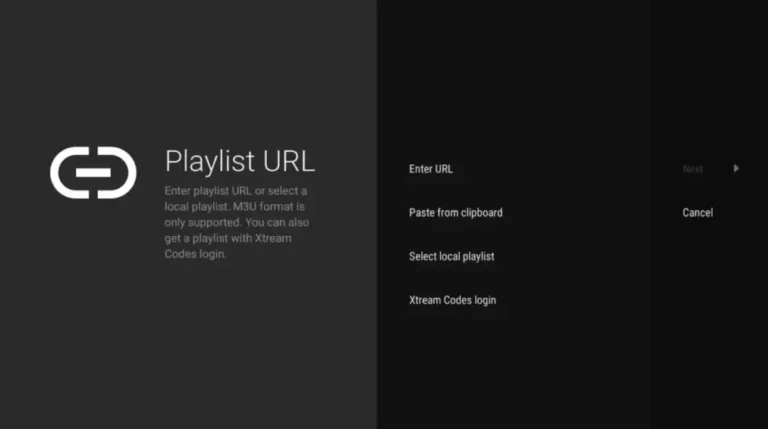
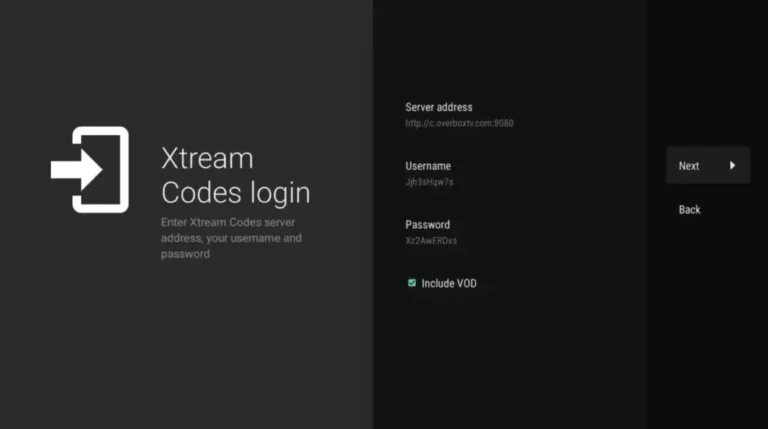
TiviMate requires a valid IPTV subscription to load channels. Once you have your credentials from iptvproviders.pro (delivered instantly after signup), adding your playlist takes under a minute:
1. Open TiviMate and select “Add Playlist” from the welcome screen.
2. Choose Xtream Codes (recommended — fastest for EPG and category loading) or M3U Playlist depending on what your IPTV provider supplied.
3. Enter the server URL, username, and password (Xtream Codes) — or paste your M3U URL directly into the URL field.
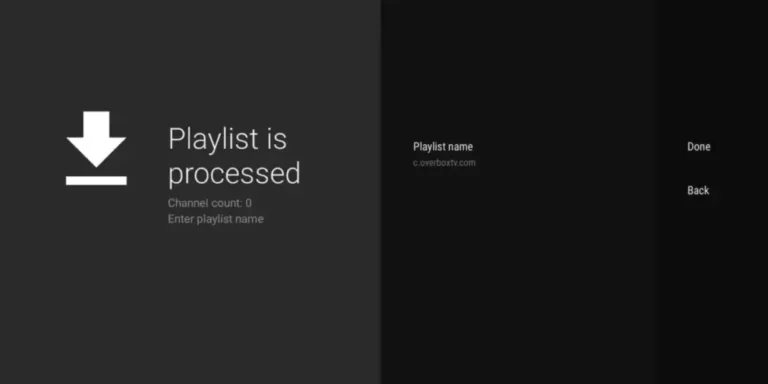
4. Wait for TiviMate to process and load your playlist. With iptvproviders.pro’s 35,000+ channels, this typically takes 15 to 30 seconds.
5. Click Done — your full channel list, categories, and EPG guide will populate automatically.
Don’t have an IPTV subscription yet? Visit iptvproviders.pro/pricing/ — plans start at $12.99/month, with a free 24-hour trial and no credit card required. Your Xtream Codes credentials arrive instantly.
Step 3 — Unlock TiviMate Premium (Optional but Recommended)
TiviMate’s free version handles basic playback well, but TiviMate Premium unlocks the features that make it the best IPTV player available — including multi-playlist support, DVR recording, catch-up, and cloud sync. Here is how to activate it:
1. Install the TiviMate Companion app from the Google Play Store on an Android phone, tablet, or via BlueStacks on a PC.
2. Open TiviMate Companion and sign in with a Google account, then select your plan (annual ~$5.99/year or lifetime) and complete the purchase.
3. Back in TiviMate on your TV or Firestick, go to Settings > Unlock Premium and log in with the same Google account used in the Companion app.
4. TiviMate Premium features — multi-playlist, DVR, catch-up, favorites, and multi-view — activate immediately.
Once Premium is active, add your iptvproviders.pro subscription as your primary playlist and enjoy 35,000+ live channels, full sports PPV coverage including NFL, NBA, NHL, UFC, and F1, plus 130,000+ on-demand titles — all in true 8K with a built-in VPN included.
Important Tips — TiviMate IPTV 2026
● Use Xtream Codes login instead of M3U URL whenever your provider offers both. Xtream Codes loads EPG and channel categories significantly faster.
● Enable Ethernet over Wi-Fi on your Firestick or Android TV box. A wired connection eliminates buffering on HD, 4K, and 8K streams.
● Always use a VPN when streaming IPTV. iptvproviders.pro includes a built-in VPN at no extra cost — this prevents ISP throttling and protects your privacy. See best IPTV USA 2026 for full setup details.
● Set TiviMate to auto-update your EPG daily. Go to Settings > Playlists > EPG > Update Interval and select every 24 hours. This keeps your TV guide accurate without manual refreshes.
● Use TiviMate’s channel group management to hide categories you don’t need. This dramatically speeds up navigation when working with large playlists of 10,000+ channels.
● For DVR recording, connect a USB drive (Firestick) or set a network storage path (Android TV). Go to Settings > Recording to configure your storage location.
● If you stream on multiple devices, TiviMate Premium’s cloud backup syncs all your settings, favorites, and channel groups across every device automatically. See best IPTV Canada 2026 for multi-device setup tips.
● Keep your M3U URL and Xtream Codes credentials private. iptvproviders.pro allows simultaneous connections based on your plan — sharing credentials beyond your connection limit will degrade quality.
TiviMate Not Working? Common Fixes
Playlist Not Loading
Verify that your M3U URL or Xtream Codes credentials are correct. Test the M3U URL by pasting it into VLC on a PC. If the URL works in VLC but not TiviMate, delete the playlist inside TiviMate and re-add it from scratch.
EPG Not Displaying
Go to Settings > Playlists, select your playlist, and check the EPG URL. If the field is empty, add your EPG URL. Tap “Update EPG” to refresh manually. If your provider does not supply an EPG URL, contact them directly.
Buffering During Playback
Switch from Wi-Fi to Ethernet if possible. If buffering persists, go to TiviMate Settings > Player and reduce the video buffer size, or switch to an external player like MX Player which handles stream decoding more efficiently on some devices.
TiviMate Crashes on Startup
Clear TiviMate’s cache and data from your device’s app settings (Settings > Apps > TiviMate > Clear Cache / Clear Data). Note that clearing data will remove your playlists — re-add them after. If the issue continues, uninstall and reinstall TiviMate using the original APK.
Premium Features Not Unlocking
Make sure you are signed into TiviMate with the same Google account used in the TiviMate Companion app during purchase. Go to Settings > Unlock Premium and sign in again. If the issue persists, open the Companion app on your Android phone and tap “Restore Purchase.”
Channels Showing Black Screen
This is almost always a server-side issue from your IPTV provider rather than a TiviMate problem. Test multiple channels. If all channels are affected, contact your provider’s support team. iptvproviders.pro offers 24/7 support with rapid response times.
Conclusion — TiviMate Installation Guide 2026
TiviMate is, without question, the most powerful IPTV player available for Firestick and Android TV users in 2026. Its combination of multi-playlist support, real-time EPG, DVR recording, and deep customization makes it the top choice for serious cord-cutters across the USA and Canada.
Following this TiviMate installation guide, you can have the app installed, your playlist connected, and live TV streaming within minutes. For the best results, pair TiviMate with a premium subscription from iptvproviders.pro — 35,000+ channels, 130,000+ on-demand titles, true 8K quality, all sports PPV, and a built-in VPN, all starting from $12.99/month.
Ready to get started? Your M3U URL and Xtream Codes credentials are delivered instantly after signup at iptvproviders.pro — no waiting, no setup delays.
Start Streaming Today — Free Trial at iptvproviders.pro
35,000+ live channels · 130,000+ movies & series · True 8K · Built-in VPN · All sports PPV · Instant activation
📦 Pricing:
● 1 Month: $12.99 — 1 connection
● 3 Months: $29.99 — 2 connections
● 6 Months: $59.99 — 3 connections
● 12 Months: $89.99 — 4 connections (Best Value — $7.50/month)
● FREE: 24-hour full trial — no credit card required
30-Day Money-Back Guarantee — 100% Refund, No Questions Asked.
🇺🇸 USA | 🇨🇦 Canada | Instant Activation | Cancel Anytime — iptvproviders.pro
Disclaimer: iptvproviders.pro is an IPTV subscription service. TiviMate is a third-party media player application developed independently. Users are responsible for ensuring their use of IPTV services complies with applicable laws and regulations in their country or region. iptvproviders.pro provides licensed content for USA and Canada.