Fast & Reliable IPTV Service Provider

Kodi Installation Guide — Easy Essential IPTV Setup 2026

Kodi Installation Guide — Easy Essential IPTV Setup 2026

Kodi installation guide 2026 — how to set up Kodi IPTV on any device

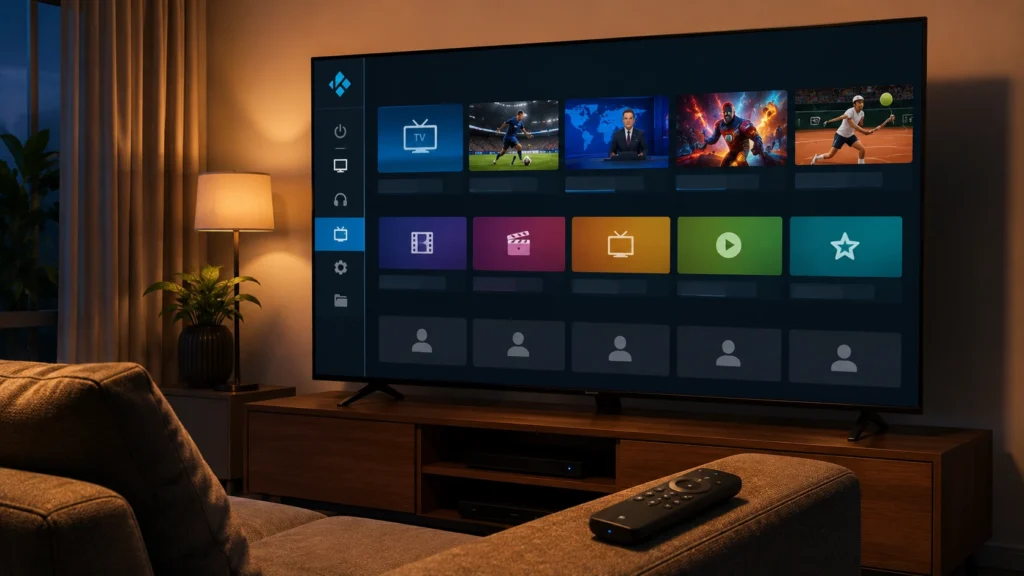
This complete Kodi installation guide walks you through every step needed to get Kodi running on your Firestick, Android TV, Windows PC, Mac, Samsung TV, LG TV, or iOS device in 2026. Kodi is the most customizable free media player available today — and when paired with the right IPTV subscription, it becomes a full-featured live TV system with EPG, channel groups, and DVR.

From downloading Kodi for the first time to configuring the PVR IPTV Simple Client with your M3U playlist, this guide covers everything. For the best streaming experience, pair Kodi with one of the best IPTV providers and get instant access to 35,000+ live channels, 130,000+ on-demand titles, true 8K streaming, built-in VPN, and all sports PPV including NFL, NBA, MLB, NHL, UFC, and F1.

What Is Kodi?

Kodi (formerly known as XBMC) is a free, open-source media center application available on virtually every platform. Originally developed as a media player for the Xbox, Kodi has evolved over the past two decades into one of the most powerful and customizable home entertainment hubs available anywhere — at zero cost.

For IPTV users, Kodi’s power comes from its official PVR IPTV Simple Client add-on. This built-in add-on connects any M3U playlist or Xtream Codes subscription directly to Kodi, transforming it into a full live TV experience complete with an Electronic Program Guide (EPG), organized channel groups, and optional DVR recording support.

Key features that make Kodi the right choice for IPTV in 2026:

      100% free and open-source — no player subscription, no licensing fees ever

      Official PVR IPTV Simple Client — built-in M3U and EPG integration, no third-party repos needed

      Cross-platform — Windows, macOS, Android, Firestick, iOS, Linux, Raspberry Pi

      Full EPG support — live TV scheduling with electronic program guide

      Channel group management — organize, hide, and reorder channel categories

      DVR recording and timeshift via PVR backend integration

      Highly customizable skins — change the entire interface to match your taste

      Active open-source community — regular updates, bug fixes, and add-on support

Important: Kodi is a media player only — it contains no channels, no content, and no streams of its own. To watch live TV, you need a valid IPTV subscription. Visit iptvproviders.pro/pricing/ for a fully compatible subscription starting at $12.99/month with a free 24-hour trial and no credit card required.

Kodi Installation Guide — Step by Step per Device

Follow the steps below for your specific device. Each platform has its own installation method — choose yours and follow the numbered steps from start to finish.

Samsung Smart TV

Kodi does not have a native app in the Samsung App Store (Tizen OS). The most reliable method is to connect an external Android-based device to your Samsung TV via HDMI.

1.    Connect external device: Plug an Amazon Firestick, Nvidia Shield, or Android TV box into your Samsung TV’s HDMI port.

2.    Install Kodi on the device: Follow the Firestick or Android TV steps below on the connected device.

3.    Switch HDMI input: Use your Samsung remote to switch to the correct HDMI input.

4.    Use Kodi via external device: Control Kodi using the external device’s remote or the Kodi remote app.

LG Smart TV (WebOS)

Like Samsung, Kodi does not have a native LG WebOS app. The same HDMI external device method applies.

1.    Connect external device: Attach a Firestick, NVIDIA Shield, or Android box to your LG TV via HDMI.

2.    Install Kodi: Install Kodi on the external device using the Firestick or Android steps below.

3.    Switch to HDMI input: Press the Input button on your LG remote and select the correct HDMI port.

4.    Stream via Kodi: Navigate Kodi with the external device’s remote for full Smart TV experience.

Android TV / Google TV

1.    Open Google Play Store: Navigate to the Play Store on your Android TV, Google TV, or Nvidia Shield device.

2.    Search for Kodi: Type “Kodi” in the search bar — select the official app by the XBMC Foundation.

3.    Install the app: Tap Install and wait for the download to complete (typically under 2 minutes).

4.    Open Kodi: Launch Kodi from your apps list and proceed to the PVR setup steps below.

Pro tip for Android TV users: A wired Ethernet connection delivers significantly better streaming performance than Wi-Fi, especially for 4K and 8K content. If your device supports it, always prefer Ethernet over wireless.

Kodi on Firestick / Amazon Fire TV

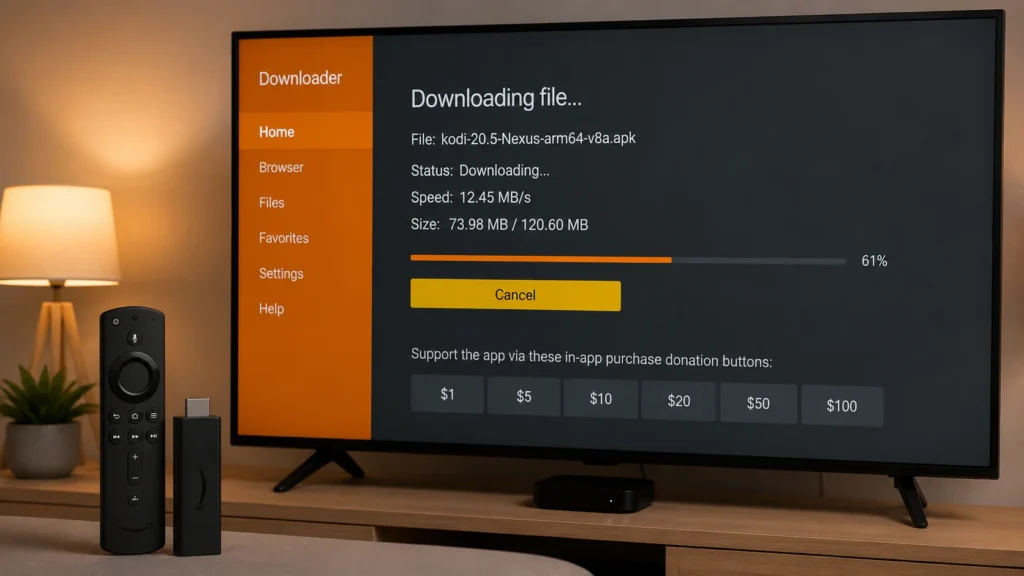
Kodi is not available directly in the Amazon App Store — it must be sideloaded. This process takes approximately 5 minutes and requires the free Downloader app.

1.    Enable Unknown Sources: Go to Settings > My Fire TV > Developer Options and toggle on “Apps from Unknown Sources.” Also enable “ADB Debugging” if prompted.

2.    Install Downloader: Return to the Fire TV home screen and search for “Downloader” in the Amazon App Store. Install the app by AFTVnews (orange icon).

3.    Open Downloader: Launch the Downloader app and select the URL/search field.

4.    Enter the Kodi download URL: Type kodi.tv/download and press Go to open the official Kodi website.

5.    Select Android / ARM version: Navigate to the Android section and choose ARMV7A (32-bit) for older Firesticks or ARMV8A (64-bit) for Fire TV Stick 4K and newer models.

6.    Use shortcode (optional): Alternatively, enter shortcode 77272 or 9999 in Downloader to go directly to the Kodi APK — faster than browsing the site.

7.    Install the APK: Once the download completes, tap Install on the installation screen. Wait for “App installed” confirmation.

8.    Delete the APK: Tap Delete to remove the installer file and free up storage space on your device.

9.    Launch Kodi: Open Kodi from your apps list (or add it to your Fire TV home screen for quick access).


Windows PC

1.    Visit kodi.tv/download: Open the official Kodi website on your Windows PC browser.

2.    Select Windows: Choose the Windows installer — download the latest stable 64-bit .exe file.

3.    Run the installer: Open the downloaded .exe file, accept the license agreement, and follow the on-screen prompts. Installation takes under 2 minutes.

4.    Launch Kodi: Open Kodi from the Start menu, taskbar, or desktop shortcut. The first launch may take 30 seconds as Kodi sets up its database.


iOS / iPhone / iPad

Kodi is not available on the Apple App Store due to Apple’s app policies. iOS users have two options:

1.    AltStore method: Install AltStore on your Mac or PC, connect your iPhone/iPad via USB, and sideload the Kodi .ipa file from kodi.tv/download.

2.    TestFlight (when available): Kodi occasionally releases beta builds via Apple TestFlight — check kodi.tv for current availability.

3.    Alternative players: As a simpler alternative, IPTV Smarters Pro or GSE Smart IPTV are available on the App Store and fully compatible with iptvproviders.pro subscriptions.


Roku

Kodi does not have a native Roku channel. Roku users should connect an external Android-based device — such as a Firestick, Nvidia Shield, or Chromecast with Google TV — to their TV via HDMI and install Kodi on that device using the steps above.


Kodi Installation Guide — Activation & Playlist Setup

With Kodi installed on your device, the next step is to connect it to your IPTV subscription using the official PVR IPTV Simple Client add-on. This is Kodi’s built-in IPTV connector — no third-party repository is required.

Step 1 — Enable the PVR IPTV Simple Client

1.    Open Kodi Settings: From the Kodi home screen, click the gear icon (⚙️) to open the settings menu.

2.    Go to Add-ons: Select “Add-ons” from the settings menu.

3.    Open My Add-ons: Click “My add-ons” and then navigate to “PVR clients.”

4.    Find PVR IPTV Simple Client: Locate the add-on in the list and click on it.

5.    Enable or Install: Click “Enable” if it is disabled, or “Install” if it is not yet installed. Wait for confirmation.

Step 2 — Configure Your M3U Playlist

1.    Open Configure: With the PVR IPTV Simple Client selected, click “Configure” to open the settings.

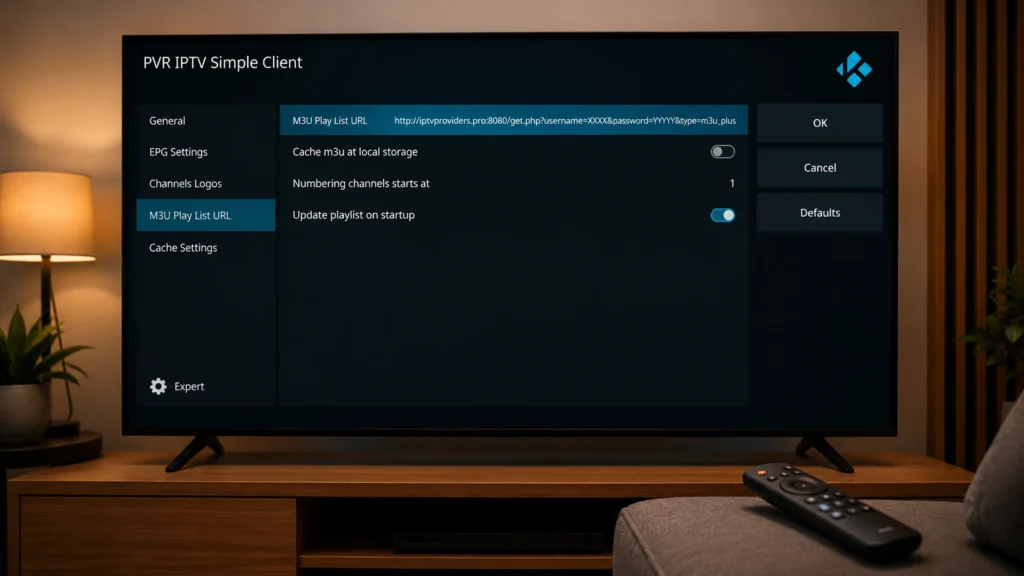
2.    Set Remote Path: In the General tab, change Location from “Local path” to “Remote path (Internet address).”

3.    Paste your M3U URL: In the “M3U Play List URL” field, paste the M3U link provided by your iptvproviders.pro subscription. This was sent to your email immediately after signup.

4.    Add your EPG URL: Go to the “EPG Settings” tab and paste your XMLTV EPG URL in the “XMLTV URL” field for live TV scheduling.

5.    Save settings: Click OK to save. Kodi will ask you to restart the PVR manager — click Yes or restart Kodi completely.

6.    Access your channels: After restarting, your channels appear under TV in the Kodi main menu. The EPG guide populates within 2–5 minutes.

Don’t have a subscription yet? Visit iptvproviders.pro/pricing/ for plans starting at $12.99/month. Your IPTV subscription M3U URL and EPG link are delivered instantly after signup — no waiting, no setup delay. A free 24-hour trial is available with no credit card required.

Kodi PVR IPTV Simple Client setup — how to configure M3U playlist URL in Kodi

Important Tips — Kodi IPTV 2026

      Use only the official PVR IPTV Simple Client for M3U playlists. Avoid unofficial third-party IPTV add-ons that claim to offer free content — they are unreliable, frequently broken, and expose your IP address to legal risk.

      Always use a VPN when streaming IPTV through Kodi. iptvproviders.pro includes a built-in VPN at no extra cost — it prevents ISP throttling, protects your privacy, and ensures stable stream speeds. See best IPTV USA 2026 for the full VPN setup walkthrough.

      Minimum 25 Mbps internet speed recommended for HD/4K streams. For true 8K content from iptvproviders.pro, a stable 50+ Mbps connection with Ethernet (not Wi-Fi) is recommended.

      Enable hardware video acceleration in Kodi: Settings > Player > Videos > Allow hardware acceleration. This significantly reduces buffering and improves playback quality on lower-powered devices like Firestick and older Android boxes.

      Set your EPG cache period to 7 days in PVR IPTV Simple Client settings. This reduces load time on subsequent Kodi startups since Kodi won’t need to re-download the full program guide each time.

      Keep your M3U URL up to date. If you experience a “playlist not found” error, log into your iptvproviders.pro account dashboard to retrieve your latest credentials. See best IPTV Canada 2026 for tips on maintaining a stable IPTV setup.

      Never share your M3U URL with others. Unauthorized simultaneous connections consume your connection slots, degrade stream quality, and may trigger account suspension under your provider’s terms of service.

      Update Kodi regularly. Visit kodi.tv to check for the latest stable release — updates include performance improvements, security fixes, and better PVR compatibility.


Kodi Not Working? Common Fixes

Here are the most common Kodi IPTV problems and their solutions. Work through each fix in order before contacting your provider.

Channels Not Showing After Adding M3U URL

Paste your complete M3U URL into a browser first to verify it is valid — it should either start downloading a file or display raw channel data. If valid, restart Kodi after saving PVR settings. If channels still do not appear, go to Settings > PVR and Live TV > General, click “Clear data,” and restart.

EPG Not Displaying or Showing Wrong Times

Go to PVR IPTV Simple Client settings and verify your XMLTV EPG URL is correct with no extra spaces. Save, then navigate to Settings > PVR and Live TV > Guide, click “Clear EPG data” and then “Update now.” Wait 3–5 minutes for the guide to fully populate.

Buffering or Freezing During Playback

Switch from Wi-Fi to Ethernet if possible. Enable hardware acceleration in Settings > Player > Videos. If buffering continues, try switching to an external player such as MX Player within Kodi’s PVR settings — external players often handle stream decoding more efficiently on lower-powered hardware.

PVR IPTV Simple Client Not Found in Add-ons

On Kodi 20 (Nexus) and Kodi 21 (Omega), the PVR IPTV Simple Client may need to be enabled separately. Go to Settings > Add-ons > My Add-ons > PVR Clients. If it is not listed, go to the official Kodi add-on repository (Settings > Add-ons > Get add-ons) and install it from there.

Kodi Crashing on Startup — Firestick

Clear Kodi’s app data from Firestick settings: Settings > Applications > Manage Installed Applications > Kodi > Clear Cache, then Clear Data. Ensure your Firestick has at least 500MB of free storage space. If the problem persists, uninstall Kodi completely and reinstall the latest APK from kodi.tv.

M3U URL Expired or Not Working

IPTV M3U URLs occasionally expire or get refreshed by the provider. Log into your iptvproviders.pro account dashboard to retrieve your current credentials. For persistent issues, contact iptvproviders.pro support via WhatsApp or email — response times are under 1 hour.

Kodi IPTV troubleshooting — fixing PVR channels not loading in 2026

Should You Use a VPN With Kodi?

Yes — using a VPN with Kodi is strongly recommended in 2026, regardless of which IPTV provider you use. Here is why:

      ISP throttling: Many internet providers in the USA and Canada throttle streaming traffic, especially on ports used by IPTV. A VPN encrypts your connection and bypasses throttling entirely, resulting in faster, more stable streams.

      Privacy protection: Kodi add-on activity and IPTV streaming are visible to your ISP without a VPN. A VPN masks your traffic, keeping your streaming habits private.

      Geographic restrictions: Some IPTV channels may be geo-restricted. A VPN lets you select a US or Canadian server to ensure full access to all regional content.

The easiest VPN solution: iptvproviders.pro includes a built-in VPN at no extra cost with every subscription plan. No separate app, no separate account, no extra payment — the VPN activates automatically as part of your subscription. This makes iptvproviders.pro one of the very few IPTV providers to offer a complete all-in-one streaming and privacy solution.

Frequently Asked Questions — Kodi Installation Guide 2026

Is Kodi free to download and use?

Yes. Kodi is completely free and open-source. There is no cost to download, install, or use Kodi as a media player on any device. The only cost involved in streaming live TV through Kodi is an IPTV subscription, which provides the actual channel content and streams.

What is the difference between Kodi and TiviMate?

Both are IPTV players, but they serve different needs. TiviMate offers a cleaner, more TV-like interface and is easier to set up for casual users on Firestick and Android TV. Kodi is significantly more powerful and customizable — it supports local media libraries, multiple add-ons, advanced PVR features, DVR recording, and full skin customization. Both are fully compatible with iptvproviders.pro subscriptions.

Does Kodi work on Samsung or LG Smart TV without an external device?

No. Kodi does not have a native app for Samsung Tizen OS or LG WebOS. To use Kodi on a Smart TV, you need to connect an external Android-based device — such as an Amazon Firestick, Nvidia Shield, or Chromecast with Google TV — to your TV via HDMI, then run Kodi on that device.

What is the best Kodi version in 2026?

As of 2026, Kodi 21 “Omega” is the latest stable release and the recommended version for all platforms. It includes improved PVR performance, better hardware decoding support, and updated add-on compatibility. Always download from the official kodi.tv website to ensure you get the legitimate, malware-free installer.

Can I use Kodi on multiple devices with one IPTV subscription?

Yes. Your iptvproviders.pro subscription allows multiple simultaneous connections depending on your plan — from 1 connection (monthly plan) up to 4 simultaneous connections (annual plan). Kodi can be installed on as many devices as you like, but simultaneous streaming is limited to your plan’s connection count.

Is IPTV legal in the USA and Canada?

Using an IPTV player like Kodi is completely legal. The legality of your streaming depends on your IPTV provider and whether they hold the proper licenses for the content they distribute. iptvproviders.pro provides licensed content for USA and Canada viewers. Always ensure your IPTV subscription comes from a legitimate, licensed provider.


Conclusion — Kodi Installation Guide 2026

Kodi remains one of the most powerful free IPTV platforms available in 2026 — particularly for Windows PC, Mac, Android TV, and Firestick users who want maximum customization, open-source flexibility, and zero player cost. Whether you are a first-time Kodi user or upgrading to a new device, this Kodi installation guide covers every step from download to live TV in under 10 minutes.

The key to the best Kodi experience is pairing it with a reliable, high-quality IPTV subscription. With iptvproviders.pro, you get 35,000+ live channels covering every major US and Canadian network, 130,000+ on-demand movies and series, true 8K quality, all sports PPV events, and a built-in VPN — all starting from just $12.99/month with a 30-day money-back guarantee and a free 24-hour trial requiring no credit card.

Your M3U URL and EPG link are delivered to your inbox within seconds of signup. Paste them into the Kodi PVR IPTV Simple Client settings following this guide, and you will be watching live TV in minutes.

Start Streaming Today — Free Trial at iptvproviders.pro

35,000+ live channels · 130,000+ movies & series · True 8K · Built-in VPN · All sports PPV · Instant activation

📦 Pricing:

      1 Month: $12.99 — 1 connection

      3 Months: $29.99 — 2 connections (save 23%)

      6 Months: $59.99 — 3 connections (save 48%)

      12 Months: $89.99 — 4 connections — $7.50/month — Best Value

      FREE: 24-hour full trial — no credit card required


30-Day Money-Back Guarantee — 100% Refund, No Questions Asked.


🇺🇸 USA  |  🇨🇦 Canada  |  Instant Activation  |  Cancel Anytime  —  iptvproviders.pro


Disclaimer: iptvproviders.pro is an IPTV subscription service. Kodi is a third-party media player not affiliated with iptvproviders.pro. This guide is for informational purposes only. Users are responsible for ensuring they access only legally licensed content in their region.

Scroll to Top