Smart IPTV Installation Guide — Easy Complete Setup 2026
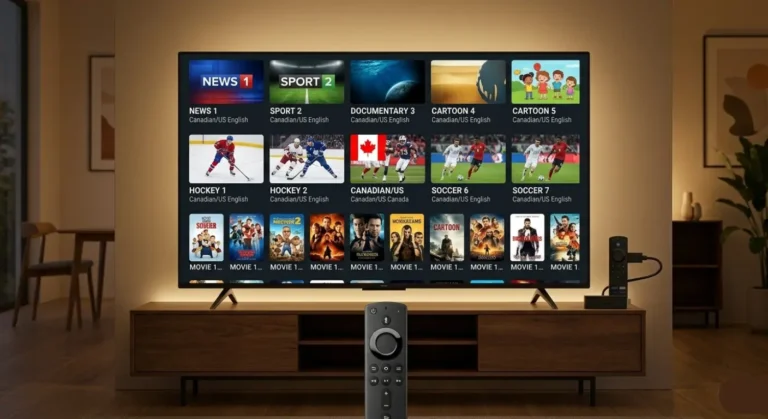
This complete Smart IPTV installation guide walks you through every step you need to get Smart IPTV running on your device in 2026. Whether you are setting up Smart IPTV for the first time or troubleshooting an existing installation, this guide covers Samsung Smart TV, LG Smart TV, Android TV, Firestick, Windows, and more — with clear step-by-step instructions for each device.
Smart IPTV is a player only — it does not include any channels. To stream live TV, movies, and sports, you need a valid IPTV subscription. Pair this Smart IPTV installation guide with a subscription from one of the best IPTV providers at iptvproviders.pro and you will be watching in minutes.
What Is Smart IPTV?
Smart IPTV (SIPTV) is a dedicated IPTV media player application built specifically for Samsung and LG Smart TVs. Unlike Android-based players, Smart IPTV runs natively on the TV operating system — no sideloading, no workarounds, no extra hardware required.
The app is available natively in both the Samsung App Store and the LG Content Store. It supports M3U playlists and Xtream Codes API, making it compatible with virtually every IPTV subscription service available in 2026.
Key features of Smart IPTV include:
● Native Samsung and LG Smart TV support — no sideloading required
● M3U and Xtream Codes playlist compatibility
● EPG (Electronic Program Guide) for live channel schedules
● Channel group management — hide or reorder categories
● Save playlist online — reduces memory load on older TV models
● 1-day free trial on first installation
● One-time activation fee of approximately $5.49 — no monthly cost for the player itself
Important: Smart IPTV is a player only — it does not include any channels or content. You always need a separate IPTV subscription to stream anything. If you do not have one yet, visit iptvproviders.pro/pricing/ to get started from $12.99/month.
Smart IPTV Installation Guide — Step by Step per Device
Samsung Smart TV
1. Samsung App Store: press the Home button on your remote and open the Apps section.
2. Search: use the search bar to find “Smart IPTV” and select the app from the results.
3. Install: click Install and wait for the download to complete.
4. MAC address: open Smart IPTV — your TV’s MAC address will appear on screen. Write it down, you will need it for activation.
5. Activate: on your phone or PC, go to siptv.eu/mylist and enter your MAC address plus your M3U playlist URL.
6. Save online: check “Save online”, complete the captcha, and click Send.
7. Done: close and reopen Smart IPTV on your Samsung TV — your channels will load automatically.
LG Smart TV
1. LG Content Store: press the Home button and navigate to the LG Content Store.
2. Search: search for “Smart IPTV” and install the app.
3. MAC address: open Smart IPTV and note the MAC address displayed on screen.
4. Activate: from a browser, visit siptv.eu/mylist and enter your MAC address and M3U URL.
5. Save online: enable “Save online” — strongly recommended for older LG models with limited memory.
6. Done: click Send, then restart Smart IPTV on your LG TV to load your channels.
Android TV / Google TV
1. Google Play Store: open the Play Store on your Android TV or Google TV device.
2. Install: search for “Smart IPTV” and install the application.
3. MAC address: launch Smart IPTV and record the MAC address shown on screen.
4. Activate: follow the same siptv.eu/mylist activation steps as described above.
5. Done: restart Smart IPTV to begin loading your channel list.
Amazon Firestick / Fire TV
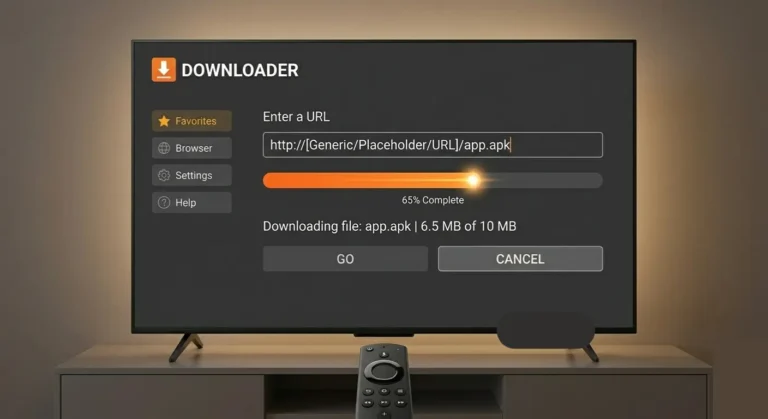
Smart IPTV is not available in the Amazon App Store — you need to sideload it using the Downloader app:
1. Unknown Sources: go to Settings > My Fire TV > Developer Options and enable Apps from Unknown Sources.
2. Downloader: in the Amazon App Store, search for “Downloader by AFTVnews” and install it.
3. Download APK: open Downloader, go to the URL field, and type: apk.siptv.app — then press Go.
4. Install: when the APK downloads, click Install and wait for the process to complete.
5. Activate: open Smart IPTV, note your MAC address, and activate via siptv.eu/mylist as described above.
Windows PC
Smart IPTV does not have a native Windows application. The recommended approach is to use an Android emulator:
1. BlueStacks: download and install BlueStacks from bluestacks.com on your Windows PC.
2. Sign in: sign into the Google Play Store inside BlueStacks using a Google account.
3. Install: search for “Smart IPTV” and install the app within BlueStacks.
4. Activate: open Smart IPTV, note the MAC address, and activate via siptv.eu/mylist.
iOS / macOS (iPhone, iPad, Mac)
Smart IPTV is not available on the Apple App Store. For iPhone and iPad users, alternative IPTV players such as IPTV Smarters Pro or GSE Smart IPTV are available and fully compatible with iptvproviders.pro subscriptions.
Roku
Smart IPTV does not have a native Roku channel. Roku users are advised to use a compatible alternative such as the Channels app or an M3U-compatible player available in the Roku Channel Store.
Smart IPTV Installation Guide — Activation & Playlist Setup
Once Smart IPTV is installed on your device, activating it with your IPTV subscription takes under two minutes:
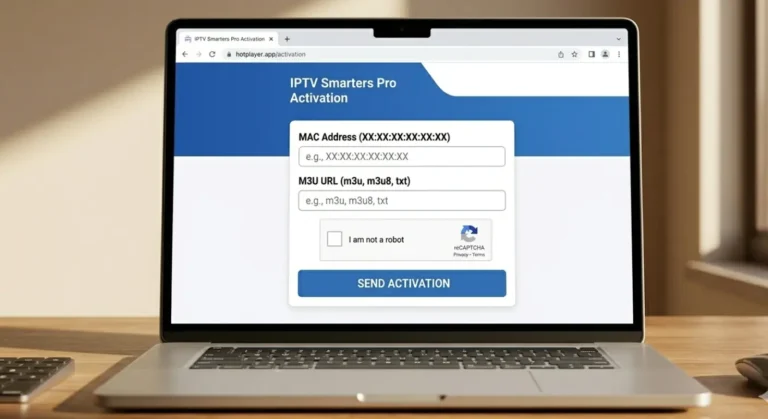
1. MAC address: open Smart IPTV on your TV or device and note the MAC address shown on screen.
2. Portal: on a phone or PC browser, navigate to https://siptv.eu/mylist.
3. Enter MAC: enter your device’s MAC address in the MAC field.
4. M3U URL: paste your M3U playlist URL in the URL field — provided by your IPTV provider after subscribing.
5. EPG: if your provider gave you an EPG URL, paste it in the EPG field for live TV schedule data.
6. Save online: check “Save online” — this stores your playlist on SIPTV’s servers and prevents memory issues on older TVs.
7. Captcha: complete the captcha verification and click Send.
8. Done: return to Smart IPTV on your TV, close and reopen the app — your channels load automatically.
Don’t have a subscription yet? Visit iptvproviders.pro/pricing/ to get your IPTV subscription — plans from $12.99/month, no contract, instant activation. Your M3U URL will be delivered immediately after signup.
Important Tips — Smart IPTV Installation Guide 2026
● Use a wired Ethernet connection whenever possible — Wi-Fi introduces latency and packet loss that causes buffering even on fast connections.
● Enable “Save online” in the siptv.eu portal for all Samsung and LG TVs, especially older models with less than 1GB of RAM.
● Always use a VPN when streaming IPTV. iptvproviders.pro includes a built-in VPN in every subscription plan at no extra cost — it automatically bypasses ISP throttling.
● If your EPG is not displaying correctly, go back to siptv.eu/mylist and re-add your EPG URL separately from the M3U URL.
● Smart IPTV requires one activation per device, each tied to a unique MAC address. The one-time $5.49 activation fee applies once per TV.
● Keep your M3U URL confidential — sharing it allows others to use your subscription and may count toward your connection limit.
● If channels load but show a black screen, the issue is almost always server-side — switch to a different server if your provider offers one.
● For the best IPTV providers compatible with Smart IPTV in the USA — for Canada.
Smart IPTV Not Working? Common Fixes
MAC Address Not Displaying
Make sure your device is connected to the internet before opening Smart IPTV. Check your Wi-Fi or Ethernet connection and restart the app.
Playlist Not Loading After Activation
Double-check that you copied the MAC address correctly into siptv.eu — MAC addresses are case-sensitive. Also verify that your M3U URL is valid and your IPTV subscription is active.
Error: Playlist Not Found
Your M3U URL may have expired or your subscription may be inactive. Contact your IPTV provider to get an updated URL. For iptvproviders.pro subscribers, your M3U URL is always available in your account dashboard.
Channels Load But Show Black Screen
This is typically a server-side issue. Test a few different channels across different categories. If the issue is widespread, contact your IPTV provider support. If only certain channels are affected, they may be temporarily offline.
EPG Not Showing
Return to siptv.eu/mylist and re-add your EPG URL. Some IPTV providers require a separate EPG URL — check your welcome email or account dashboard.
App Crashes on Startup
Clear Smart IPTV’s cache from your TV app management settings (Settings > Apps > Smart IPTV > Clear Cache). If the problem persists, uninstall and reinstall the app.
Very Slow Channel Loading
Enable “Save online” in siptv.eu/mylist. For Samsung and LG TVs with limited memory, loading a large playlist locally causes slowdowns — saving online offloads this to SIPTV’s servers.
Conclusion — Smart IPTV Installation Guide 2026
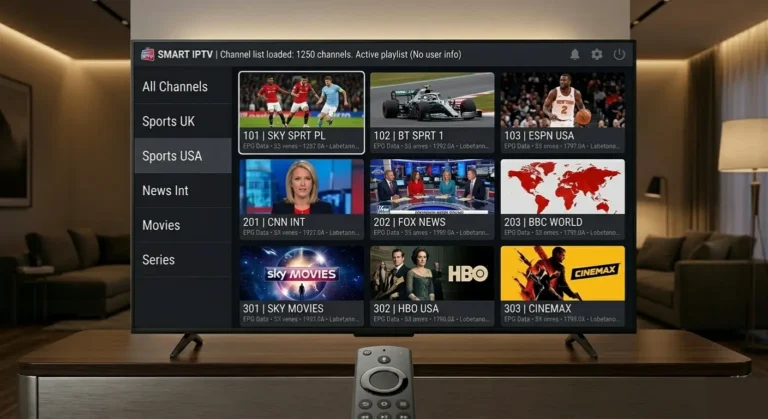
Smart IPTV remains one of the top choices for cord-cutters in the USA and Canada looking for a native Smart TV IPTV player that is easy to set up and reliable for daily use. This Smart IPTV installation guide covers every major device and scenario — from first-time setup on a Samsung TV to sideloading on Firestick and fixing the most common errors.
For the best streaming experience, pair Smart IPTV with a premium IPTV subscription from iptvproviders.pro — 35,000+ live channels, 130,000+ on-demand titles, true 8K streaming, a built-in VPN, and all sports PPV included from $12.99/month with no contract.
Ready to get started? Your M3U URL will be delivered instantly after signup — simply paste it into siptv.eu/mylist and you are live in under two minutes.
Start Streaming Today — Free Trial at iptvproviders.pro
35,000+ live channels · 130,000+ movies & series · True 8K · Built-in VPN · All sports PPV · Instant activation
📦 Pricing:
● 1 Month: $12.99 — 1 connection
● 3 Months: $29.99 — 2 connections
● 6 Months: $59.99 — 3 connections
● 12 Months: $89.99 — 4 connections (Best Value — $7.50/month)
● FREE: 24-hour full trial — no credit card required
30-Day Money-Back Guarantee — 100% Refund, No Questions Asked.
🇺🇸 USA | 🇨🇦 Canada | Instant Activation | Cancel Anytime — iptvproviders.pro
Disclaimer: iptvproviders.pro is an IPTV subscription service. Smart IPTV is a third-party media player not affiliated with iptvproviders.pro. This guide is for informational purposes only. Users are responsible for ensuring they access only legally licensed content in their region.